Convert SBV Subtitles to SRT
Or paste subtitle text
Use a UTF-8 SBV subtitle file, for example an export from YouTube Studio. Where do I get the source file?
Open a local SBV file or paste its text. Keep original cue timings and line breaks, preview the result and download a free SRT file.
Use a UTF-8 SBV file to keep accents and other scripts intact.
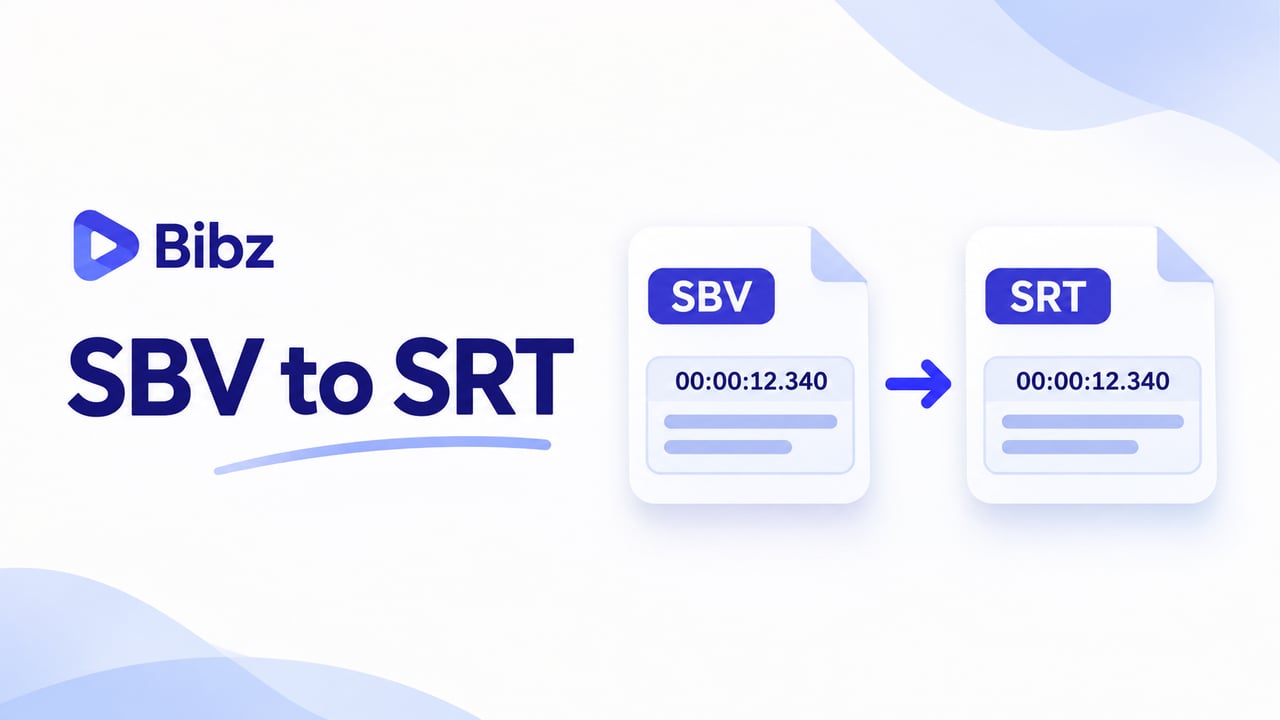
Convert SBV to SRT without rewriting your YouTube subtitles
If you already have an SBV caption file but your next editor or player asks for SRT, you only need to change its structure. This free SBV to SRT converter adds cue numbers and writes SRT timestamps while keeping the caption text and order. Open a local file, drop it into the input, or paste its contents, then check the result before saving a separate .srt copy.
Start with the caption file you already have
Use an existing SBV export, such as subtitles downloaded from your own YouTube Studio workflow. You do not need the video for conversion. Keep the original SBV for comparison, especially when a reviewer will check the captions or you use them with several video versions.Change the format, keep the timing decisions
The conversion preserves each cue’s start time, end time, and text lines. It does not decide when a speaker begins, shorten long captions, or improve an automatic transcript. That distinction helps you choose the next step: convert here when the format is the obstacle, then use a subtitle editor if the wording or synchronization needs work.
SBV and SRT: what changes in the output?
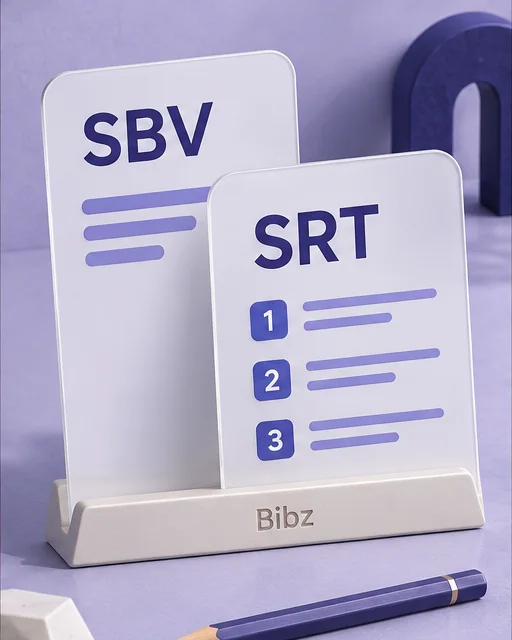
SBV starts each caption block with two timestamps separated by a comma. SRT adds a number, separates the times with an arrow, and uses a comma before milliseconds. The start time 0:00:01.000 becomes 00:00:01,000, representing the same moment. Cues are numbered from 1 in source order, making it straightforward to compare both files.
.sbv0:00:01.000,0:00:03.250
Hello from Bibz.
Bonjour !
0:00:04.000,0:00:06.500
字幕を確認します。1
00:00:01,000 --> 00:00:03,250
Hello from Bibz.
Bonjour !
2
00:00:04,000 --> 00:00:06,500
字幕を確認します。
This synthetic sample deliberately includes two text lines in the first cue and Japanese text in the second. Both remain in the SRT output: the subtitle format changes, not the caption content. The tool’s sample button loads this same example, which does not come from a real video.
What the SBV to SRT converter preserves and checks
Save the result for an application that accepts SRT, then check the captions against the intended video.
Sequential cue numbers
Every accepted caption block receives a number, starting at 1. The converter keeps the original cue order instead of sorting, merging, or deduplicating captions. If the source jumps backward in time, that ordering still needs your attention in a subtitle editor.
Readable timing errors
A cue needs a valid start and end time, with the end later than the start. If the input fails a supported check, the error points to the relevant source line and shows the original text where available. Correct that portion rather than guessing which caption caused the problem.
UTF-8 text and caption line breaks
Accents, non Latin scripts, and separate lines inside a cue remain in the converted text. The input must be UTF-8. A blank line divides caption blocks, so an accidental blank line inside one caption can change how the source is interpreted.
A complete, inspectable SRT result
Review the read only preview, inspect the full result or its ending when needed, and copy or download the complete output. A shortened initial view does not shorten the saved SRT. Wording changes belong in your source or a subtitle editor.
- Input format
- SBV
- Output file
- SRT
- File size limit
- 2 MiB
Subtitle workflows
When converting an SBV subtitle file is useful
Reuse captions from a YouTube workflow
You have already reviewed the captions for a video and have an SBV export. Convert that file when another publishing or editing step accepts SRT. Check that both workflows use the same video cut; a new introduction or removed section can make unchanged timings appear wrong.
Import subtitles into a video project
When your editor asks for an SRT subtitle file, create one without retyping captions. After import, inspect a cue near the start and another near the end. This catches an incorrect video version or a timing offset that a format conversion cannot detect.
Hand off a multilingual subtitle track
Send a reviewer the existing caption language in SRT format, preserving deliberate line breaks and spelling. Convert each language file separately and name the downloads clearly. The conversion does not produce another language, so a translator still needs to review any translated captions.
How to convert an SBV file to SRT
Use a local file or pasted SBV text. A video URL, MP4, or transcript without timings cannot substitute for subtitle input. Check the first and last cues against the same video cut before importing the SRT into your editor. A different cut can change cue alignment even when the conversion preserves every timestamp.
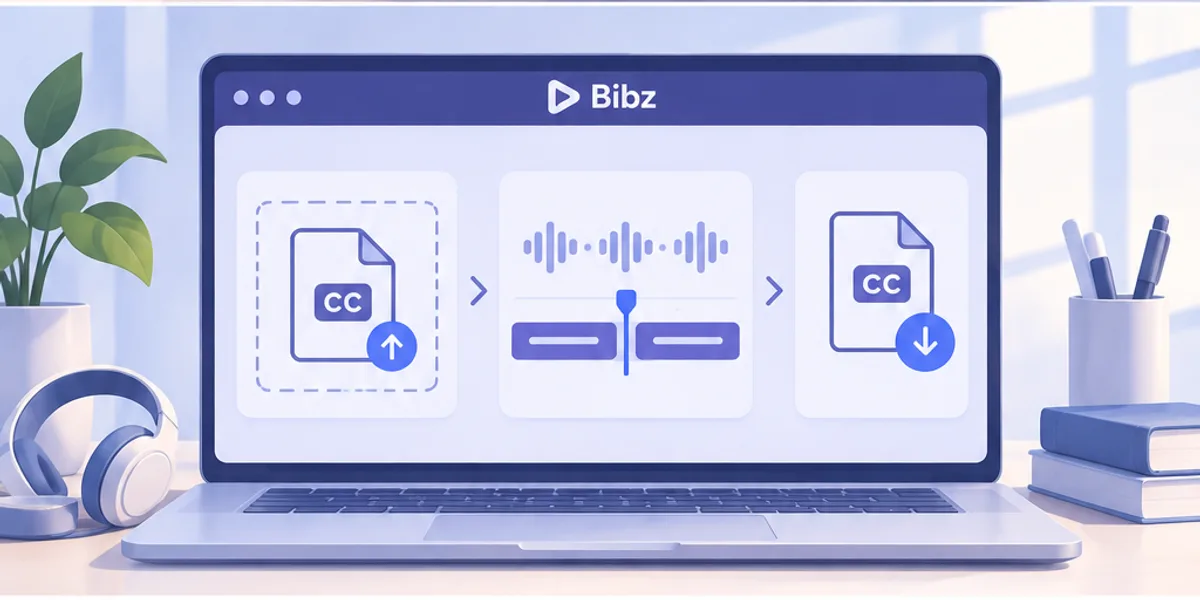
Locate and check your source
Find the .sbv export for the correct language and version of your video. If you manage the captions in YouTube Studio, use its subtitle download option to obtain the available caption file. Open the file as text if you are unsure of its contents: you should see a timing line, caption text, and a blank line before the next cue.
Choose, drop, or paste the SBV
Select one UTF-8 .sbv file, drag it into the file area, or paste the complete SBV text into the input. The limit is 2 MiB, including pasted input. Start the conversion after checking that you selected the intended source. Processing takes place in your browser; the subtitle contents are not uploaded for conversion.
Review the converted cues
Check numbering, milliseconds, and the lines of a multiline caption. Inspect accented characters or other scripts, then check the end of the result as well as the beginning. If a new attempt fails while an earlier successful result remains available, read the source and status shown with that result before saving it.
Save and verify the SRT
Download the .srt file, or copy the complete output into a text editor and save it as UTF-8 with the .srt extension. Import it into the intended application and play a short section of the matching video. Keep the source SBV until you have confirmed that the captions display as expected.
Troubleshooting
Resolve SBV conversion errors and subtitle problems
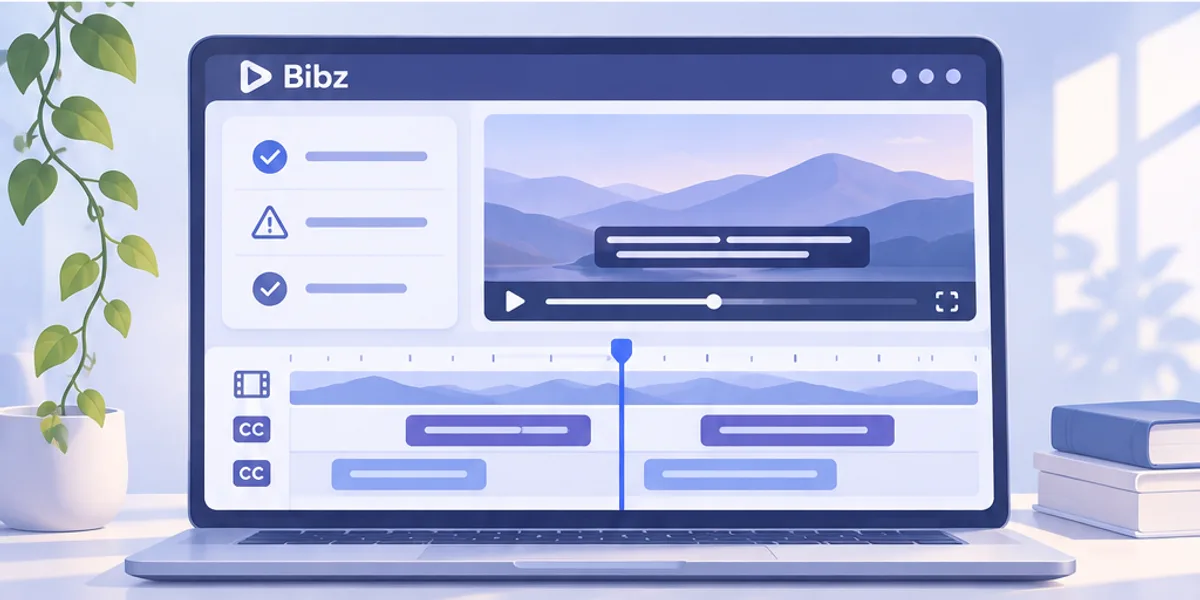
The reported timing line is invalid
Use the displayed line number and original snippet to find the cue in your source. Check both timestamps, their comma separator, and whether the end is later than the start. A filename ending in .sbv is not enough: a file containing SRT arrows or plain prose needs the correct format before it can be converted here.
A caption is empty or split unexpectedly
Every timing line needs caption text after it. Remove an unfinished empty cue or restore its missing words. If a paragraph has been split into another block, inspect blank lines in the input. Keep ordinary line breaks within a caption; reserve an empty line for the gap between cues.
Characters or synchronization look wrong
For invalid encoding, save a fresh UTF-8 copy in a text editor; renaming the extension will not repair the bytes. For delayed or early captions, compare the original SBV against the exact video cut. Conversion preserves timing values, so use a subtitle editor for an offset, overlaps, or scene changes.
Frequently asked questions about SBV to SRT
Is changing .sbv to .srt in the filename enough?
No. The contents use different structures. An SRT cue needs a sequence number and a timing line in SRT notation. Renaming the file leaves SBV timestamps inside it, which may fail in the next application. Convert the contents, then save the generated SRT with its proper extension.
Will my captions keep the same start and end times?
Yes. The numeric time values stay the same; their notation changes. No timing offset is added, and captions are not shifted to match another edit of the video. If the original timing is wrong, correct it in a subtitle editor and verify it against the recording.
Can I convert YouTube subtitles without uploading the video?
Yes, when you already have an SBV subtitle file. The converter only needs its text and timings, not the media. It does not download captions from a YouTube link or create them from speech. Obtain the subtitle export through your existing authorized caption workflow first.
Does it work with German, French, Japanese, or other languages?
UTF-8 caption text is preserved without translation. Check a few characters after conversion, especially if the source came from an older editor with a different encoding. The file format conversion does not check grammar, alter text direction, or choose a font for the final video player.
Can I paste SBV text instead of choosing a file?
Yes. Paste the complete caption blocks, including their timing lines and blank separators. The same structure checks and 2 MiB limit apply. A copied transcript containing only the spoken words cannot supply the missing cue timings, so it cannot become a synchronized SRT through this converter.
Will overlapping or repeated captions be corrected?
No. Each cue is checked for a valid start and a later end, but the converter keeps source order and does not merge duplicates or retime overlaps. Review these editorial decisions in a subtitle editor if your destination platform reports them or playback looks confusing.
Is everything included when I copy or download?
Yes. Copy and download use the full successful conversion, including captions beyond the initial preview. Use the full or end preview to inspect the last cues before saving. If clipboard permission is unavailable in your browser, the SRT download provides the same complete converted content.
Can I edit captions here or recover them on another visit?
The result preview is for checking, not editing. Make changes in the source or your subtitle editor, then convert again as needed. Save the output locally before leaving; the page does not provide a persistent conversion history that you can return to on another device.
Convert your SBV captions and check the result
Open a file or paste its contents, review the numbered cues, and save a complete SRT copy.